
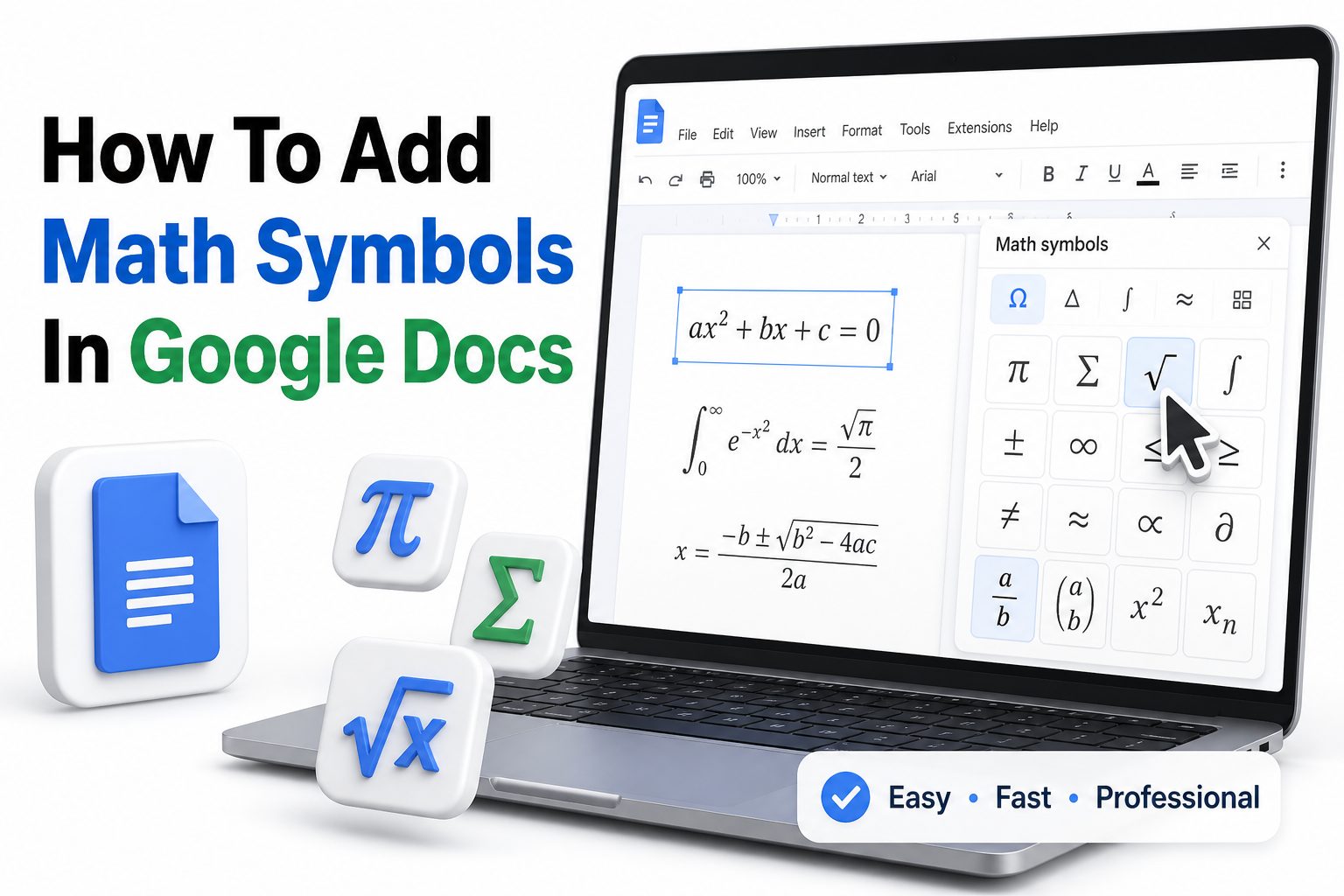
Typing math in a regular document can feel awkward when you need fractions, Greek letters, operators, superscripts, subscripts, or full equations. Google Docs gives you several built-in ways to handle this, but many users miss them because the tools are spread across menus, shortcuts, and formatting options. Once you know where to look, adding mathematical notation becomes much faster and cleaner.
This guide explains how to add math symbols in google docs using the equation toolbar, special characters menu, keyboard shortcuts, copy-and-paste methods, and add-ons. Whether you are preparing homework, worksheets, research notes, lesson plans, lab reports, or technical documentation, the goal is the same: insert symbols accurately without breaking the flow of your writing. You will also learn practical formatting tips so your math symbols look professional, align properly, and remain easy to edit later.
Use the Equation Tool in Google Docs
The equation tool is the best place to start when you need proper mathematical formatting. It lets you insert symbols, fractions, radicals, exponents, subscripts, arrows, Greek letters, and operators directly inside your document without relying on outside tools.
To open it, place your cursor where the math should appear, select Insert, then choose Equation. A new equation toolbar appears below the main menu. From there, you can pick math symbols from grouped dropdown menus and type numbers or variables around them.
Insert Common Math Symbols from the Equation Toolbar
The equation toolbar includes many symbols used in algebra, geometry, calculus, statistics, and science writing. You can insert plus-minus signs, multiplication dots, division symbols, inequalities, set symbols, arrows, square roots, integrals, summations, and Greek letters such as alpha, beta, theta, and pi.
This method works well when your document needs editable notation. Unlike pasted images, equation symbols remain part of the text area. You can revise values, add variables, adjust spacing, or continue typing around the equation without recreating it from scratch.
Quick Ways to Use the Equation Toolbar
- Go to Insert and select Equation.
- Use the toolbar dropdowns to choose operators, relations, Greek letters, or arrows.
- Type variables and numbers directly into the equation field.
- Press the right arrow key to move out of structured items like exponents.
- Use the same tool for fractions, roots, summations, and limits.
- Keep equations editable by avoiding screenshots or pasted images.
Add Symbols with Special Characters
The special characters menu is ideal for single math symbols that do not need full equation formatting. It includes thousands of characters, including currency marks, punctuation, arrows, number forms, technical symbols, and mathematical operators.
To use it, select Insert, then Special characters. You can search by name, draw the symbol in the box, or browse categories. Searching terms like greater than, infinity, pi, square root, degree, approximately, or not equal can quickly bring up the symbol you need.
Search Smarter in the Special Characters Menu
Google Docs search works best when you use plain names instead of technical codes. For example, search less than or equal instead of trying to remember Unicode values. You can also search Greek letter names if you need symbols such as mu, sigma, lambda, or omega.
The drawing box is useful when you recognize a symbol but do not know its name. Sketch the shape with your mouse or trackpad, then choose from the suggested matches. This is especially helpful for arrows, geometry symbols, and uncommon operators.
Use Keyboard Shortcuts for Faster Math Typing
Keyboard shortcuts can save time when you often use superscripts, subscripts, or simple symbols. For example, Google Docs supports shortcuts for superscript and subscript formatting, which are helpful for exponents, chemical formulas, variables, and footnote-style notation.
On Windows or Chromebook, use Ctrl + . for superscript and Ctrl + , for subscript. On Mac, use Command + . for superscript and Command + , for subscript. Type the number or letter, then use the shortcut again to return to normal text.
When Shortcuts Work Better Than Equations
Shortcuts are fastest for simple inline notation such as x2, H2O, CO2, or y1. They keep your writing compact and avoid opening extra toolbars. For longer equations, the equation tool usually gives cleaner structure and better symbol grouping.
You can combine shortcuts with symbols from the special characters menu. For instance, type a variable, add a superscript exponent, then insert a degree symbol or inequality sign. This approach is practical for worksheets, notes, and short technical explanations.
Keyboard Shortcut Reference
Action | Windows or Chromebook | Mac
Superscript | Ctrl + . | Command + .
Subscript | Ctrl + , | Command + ,
Copy | Ctrl + C | Command + C
Paste without formatting | Ctrl + Shift + V | Command + Shift + V
Find in document | Ctrl + F | Command + F
Type Fractions in Google Docs
Fractions can be added in several ways depending on how formal your document needs to look. For quick notes, typing 1/2 or 3/4 may be enough. For polished academic or classroom material, the equation tool creates cleaner stacked fractions.
Open Insert, choose Equation, then select the math operations menu. Choose the fraction format and type the numerator and denominator into the placeholders. This keeps the fraction aligned and readable, especially when it appears alongside variables, exponents, or units.
Use Automatic Fraction Characters Carefully
Google Docs may convert some common typed fractions into single-character forms, such as ½ or ¼, depending on your preferences and autocorrect behavior. These are fine for casual writing but may not match the style of formal equations.
For consistency, avoid mixing slash fractions, single-character fractions, and stacked fractions in the same section. Choose one style based on the document’s purpose. Stacked fractions are usually best for math assignments, exams, formulas, and professional educational content.
Add Greek Letters and Scientific Symbols
Greek letters are common in mathematics, physics, engineering, statistics, and academic writing. Symbols such as π, θ, μ, σ, Δ, Ω, and λ often represent constants, angles, averages, standard deviation, change, resistance, or wavelength.
You can insert Greek letters through the equation toolbar or the special characters menu. The equation toolbar is better when the letter belongs inside a formula. The special characters menu is better when you only need one symbol in a sentence.
Keep Scientific Notation Clear
Scientific notation often uses superscripts, multiplication symbols, Greek letters, and units. For example, you may need expressions such as 6.02 × 10²³ or symbols like °C, μm, Ω, and Δt. Google Docs can handle these with a mix of tools.
Use superscript formatting for powers of ten, special characters for symbols, and the equation tool for longer formulas. For more formatting help, see [Internal Link: Google Docs Formatting Tips] when preparing longer academic or technical documents.
Common Math and Science Symbols
- π for pi in geometry, trigonometry, and circles.
- θ for angles in trigonometry and physics.
- μ for micro, mean values, or coefficients.
- σ for standard deviation in statistics.
- Δ for change in math and science formulas.
- Ω for ohms in electrical calculations.
- ° for degrees in temperature or angles.
- × for multiplication in scientific notation.
Create Exponents and Subscripts
Exponents and subscripts are small but important details in math writing. Exponents show powers, while subscripts identify variables, sequence values, chemical counts, or indexed terms. Poor formatting can make a correct answer look confusing or unprofessional.
For simple expressions, highlight the character and apply superscript or subscript from Format, Text, then Superscript or Subscript. You can also use the keyboard shortcuts. For more advanced expressions, use the equation tool so spacing and alignment stay consistent.
Examples of Exponents and Subscripts
You might use exponents for x², y³, area formulas, growth models, or powers of ten. Subscripts are useful for a₁, xₙ, H₂O, CO₂, and variable labels such as P₀ or V₁.
When an expression contains both exponents and subscripts, test readability before sharing the document. Google Docs can display them well, but crowded notation may need equation formatting or extra spacing to make each character clear.
Insert Square Roots, Radicals, and Powers
Square roots and radicals are easier to read when inserted through the equation toolbar. After selecting Insert and Equation, choose the math operations dropdown and pick the radical structure. Then type the number, variable, or expression inside the root.
For cube roots or more complex radicals, the equation editor gives better control than plain text. It also helps keep the radical bar properly aligned over the full expression, which matters when the value includes variables, fractions, or grouped terms.
Format Powers Inside Equations
When working inside an equation, you can use the toolbar options or keyboard-style entries to create powers. Type the base, choose superscript formatting, and enter the exponent. Move out of the exponent area before continuing the rest of the expression.
This is especially useful for quadratic equations, polynomial expressions, exponential functions, and formulas with powers of ten. Consistent formatting helps readers tell the difference between ordinary numbers and exponent values at a glance.
Formatting Checklist for Radicals and Powers
- Use equation formatting for roots with variables or grouped expressions.
- Keep exponents small and clearly attached to the correct base.
- Add parentheses when the exponent applies to more than one term.
- Avoid using plain text symbols when structure affects meaning.
- Check line breaks so radicals do not split awkwardly.
- Use consistent spacing around operators in longer formulas.
Use Copy and Paste Without Creating Formatting Problems
Copying symbols from reliable sources can be convenient, especially for rare characters. You can copy a math symbol from another document, a character map, or a trusted reference page, then paste it directly into Google Docs.
The risk is unwanted formatting. Symbols copied from websites may bring hidden font styles, spacing, colors, or links. To avoid messy documents, paste without formatting using Ctrl + Shift + V on Windows or Command + Shift + V on Mac.
Best Places to Copy Math Symbols
Useful sources include Unicode character charts, previously formatted Google Docs, official course materials, or your own saved symbol list. If you use the same symbols often, create a small reference document with clean copies.
After pasting, compare the symbol with nearby text. Make sure the font, size, baseline, and spacing look correct. If the symbol sits too high, too low, or too far from the surrounding text, use the equation tool instead.
Install Google Docs Add-ons for Advanced Equations
Built-in tools are enough for most users, but add-ons can help with advanced math notation. Teachers, students, researchers, and technical writers may need faster equation entry, LaTeX support, graphing, or reusable formula libraries.
To browse add-ons, go to Extensions, then Add-ons, then Get add-ons. Search for math equation tools and review ratings, permissions, and recent updates before installing. Choose tools that fit your workflow instead of adding several overlapping extensions.
When Add-ons Are Worth Using
An add-on is useful if you write math-heavy documents every week or need features beyond the default equation toolbar. LaTeX-style entry, formula conversion, equation images, and symbol libraries can speed up repeated work.
For occasional symbols, add-ons may be unnecessary. They can add extra menus, request permissions, or slow your workflow. Start with Google Docs’ built-in tools, then install an add-on only when you have a clear need.
Built-in Tools vs Add-ons
Option | Best For | Main Advantage | Limitation
Equation tool | Editable formulas | Built into Google Docs | Basic interface
Special characters | Single symbols | Fast searching | Not ideal for full equations
Keyboard shortcuts | Exponents and subscripts | Very quick | Limited symbol range
Add-ons | Heavy math writing | Advanced features | May require permissions
Copy and paste | Rare symbols | Convenient | Formatting may vary
Use LaTeX-Style Input Where Available
Google Docs does not behave like a full LaTeX editor, but some equation workflows support typed commands or add-on-based LaTeX conversion. Users familiar with commands such as \alpha, \sqrt, \frac, or \sum may prefer this style.
If you rely on LaTeX often, test your preferred add-on with a sample document before using it for important work. Confirm that equations export well to PDF, display clearly for collaborators, and remain editable when you revise the document later.
Avoid Mixing Too Many Equation Styles
A document can look uneven when some formulas are typed as plain text, others are pasted images, and others use equation formatting. Readers may notice inconsistent symbol size, spacing, or alignment even if the math is correct.
Choose a primary method for the whole document. Use the equation tool for formal formulas, special characters for inline symbols, and shortcuts for simple exponents or subscripts. This keeps your document cleaner and easier to maintain.
Format Math Symbols for Readability
Math symbols need enough space to be readable, especially in long documents. Crowded notation can confuse readers and make equations harder to scan. Add spaces around operators when writing inline expressions such as a + b = c.
For displayed equations, place formulas on their own lines when they are central to the explanation. This gives readers a visual pause and reduces the chance that important notation gets buried inside a dense paragraph.
Check Font and Alignment
Google Docs handles most fonts well, but some math symbols look better in certain typefaces. If symbols appear uneven, try a common readable font such as Arial, Times New Roman, or Cambria for academic-style documents.
Alignment also matters. If several equations appear in sequence, keep them visually consistent. You may use tables without borders for step-by-step solutions, but avoid overly complex layouts that make editing harder later.
Readability Tips for Math Documents
- Put long equations on separate lines.
- Use consistent fonts throughout the document.
- Avoid tiny symbols that are hard to read when printed.
- Add short explanations before or after complex formulas.
- Keep related equations close to the text that explains them.
- Preview the document before exporting or sharing.
- Use [Internal Link: Student Writing Tools] for related academic document tips.
Share and Export Documents with Math Symbols
Before sharing a math-heavy Google Doc, check how symbols appear for other viewers. Most built-in symbols display correctly across devices, but pasted characters, unusual fonts, or add-on-generated equations can behave differently.
Use sharing permissions carefully if collaborators need to edit formulas. Comment-only access may be enough for review, while edit access is needed for classmates, teachers, or coworkers who must revise equations directly.
Export to PDF for Stable Formatting
If the final document does not need live editing, exporting to PDF is often the safest option. PDF format preserves layout better, especially for worksheets, reports, handouts, and assignments with many symbols or equations.
Open File, choose Download, then select PDF Document. Review the exported file before sending it. Pay close attention to fractions, superscripts, radicals, and Greek letters, since these are the elements most likely to show formatting issues.
Troubleshoot Missing or Misaligned Symbols
If a symbol does not appear correctly, the problem may be font support, copied formatting, browser behavior, or an add-on issue. Start by changing the font, pasting without formatting, or reinserting the symbol through Google Docs’ built-in menus.
For equations that appear misaligned, delete the affected section and recreate it using the equation toolbar. Small formatting glitches can be difficult to fix manually, so rebuilding the equation is often faster than adjusting each character.
Fix Common Google Docs Math Issues
Some users find that exponents continue after the intended character. This happens when superscript formatting remains active. Use the shortcut again or return to Format, Text, and turn off Superscript before continuing.
Another common issue is inconsistent spacing around operators. Use normal spaces around plus, minus, equals, and inequality signs in inline math. For formal equations, rely on the equation editor, which usually handles spacing more predictably.
Troubleshooting Checklist
- Paste without formatting when copying symbols from websites.
- Switch to a standard font if symbols look unusual.
- Reinsert broken symbols through Special characters.
- Use the equation tool for fractions, radicals, and structured notation.
- Turn superscript or subscript off after typing the needed character.
- Export to PDF and review before submitting or publishing.
- Remove add-ons that create display or editing problems.
Best Method for Different Types of Math Work
The best way to add math symbols depends on what you are writing. A short classroom answer needs a different workflow than a polished research paper, a worksheet, or a technical manual.
For quick notes, shortcuts and special characters are usually enough. For formal work, use the equation tool as your main method. For repeated advanced notation, consider a trusted add-on that supports your preferred entry style.
Match the Tool to the Document
Students often need fast input for homework, so learning shortcuts for exponents and subscripts pays off quickly. Teachers may benefit from add-ons if they create worksheets with many fractions, radicals, and answer keys.
Researchers and technical writers should focus on consistency and export quality. If your document will be shared widely, test symbols in view-only mode and as a PDF. Clear formatting matters as much as entering the correct notation.
Conclusion
Adding math notation in Google Docs becomes much easier once you choose the right tool for each situation. The equation toolbar is the most reliable option for fractions, roots, operators, Greek letters, and structured formulas. The special characters menu is useful for single symbols, while keyboard shortcuts are perfect for quick superscripts and subscripts.
For advanced work, add-ons can speed up repeated equation writing, but they are not always necessary. Most users can produce clean math documents with the built-in features alone. The key is consistency: use one main formatting style, check readability, and preview the document before sharing or exporting. If you regularly write assignments, lesson plans, reports, or scientific notes, learning how to add math symbols in google docs will save time and make your documents look far more professional.
FAQ
Can I add math symbols in Google Docs without an add-on?
Yes. Google Docs includes an equation toolbar, special characters menu, and text formatting options for superscripts and subscripts. These built-in tools are enough for most school, college, and basic professional math documents.
Where is the equation tool in Google Docs?
Place your cursor in the document, select Insert, then choose Equation. A toolbar appears with dropdown menus for operators, Greek letters, relations, arrows, and other math structures you can insert directly.
How do I type squared numbers in Google Docs?
Type the base number or variable, turn on superscript using Format, Text, Superscript, then type 2. You can also use Ctrl + . on Windows or Command + . on Mac.
Can Google Docs create fractions?
Yes. Use Insert, then Equation, and choose the fraction format from the equation toolbar. This creates a stacked fraction with spaces for the numerator and denominator, which looks cleaner than a slash fraction.
Why do my math symbols look different after pasting?
Copied symbols may bring outside formatting, fonts, or spacing from the source. Paste without formatting, switch to a standard font, or insert the symbol again through Special characters or the equation toolbar.
0 Comments