
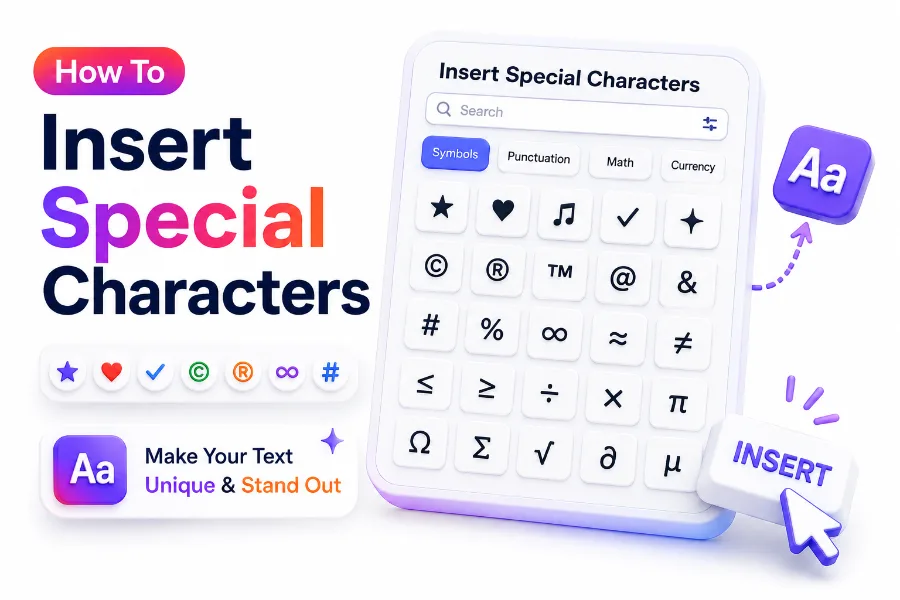
Special characters show up everywhere, from email addresses and passwords to foreign names, currency symbols, mathematical signs, legal marks, and social media posts. Yet many people still pause when they need to type one because the key is not visible on the keyboard. That small interruption can slow down writing, data entry, design work, and even simple messaging.
If you have ever searched for how to insert special characters, you are not alone. It is a common need for students, office workers, writers, developers, and anyone using more than basic letters and numbers. The good news is that every major device already includes built-in ways to add symbols, accents, and punctuation marks. Once you know the right method for your system, the process becomes quick and reliable.
This article explains the easiest ways to insert special characters on Windows, Mac, smartphones, and within common applications. It also covers shortcuts, character tools, copy-and-paste methods, and practical tips that help you type more accurately without breaking your workflow.
What Counts as Special Characters
Special characters are symbols that go beyond the standard A to Z alphabet and basic numbers. They include punctuation marks, currency signs, accented letters, mathematical symbols, trademark marks, arrows, fractions, and typographic marks used in formal or multilingual writing.
Many people think only of symbols like @, #, or %, but the category is much wider. Characters such as é, ñ, €, ©, ™, §, and ° are also special characters. The exact group depends on the software, keyboard layout, language settings, and the task you are doing.
Why Special Characters Matter in Daily Typing
Special characters improve clarity, accuracy, and professionalism. A resume, business email, academic paper, or online form often looks incomplete or incorrect when names, units, or symbols are typed in plain text substitutes instead of the proper characters.
They also matter for technical and functional reasons. Passwords often require them, coding languages use them constantly, and financial writing depends on correct currency signs. Learning to type them directly saves time and reduces small errors that add up during routine computer work.
Quick Examples of Common Special Characters
- Currency symbols: $, €, £, ¥
- Accented letters: á, é, ü, ñ
- Legal and brand marks: ©, ®, ™
- Math and technical signs: ±, ×, ÷, °
- Punctuation and formatting marks: em dash, bullet, ellipsis
- Brackets and operators: {}, [], |, ~
When to Use Special Characters Instead of Plain Text
Using the correct symbol is often better than replacing it with letters or spacing tricks. For example, the degree symbol looks cleaner than typing the word degree in a weather report, and the euro sign is more precise than spelling out the currency each time.
This matters even more in names, citations, and brand references. A person’s name with accents should be written correctly, and legal symbols should appear in the proper format when required. Clean formatting helps readers trust the information and understand it faster.
How to Insert Special Characters on Windows
Windows offers several reliable ways to type special characters, and the best option depends on the symbol you need most often. For everyday typing, keyboard shortcuts and the Alt code method are usually the fastest once you memorize a few common combinations.
Alt codes work by holding the Alt key and typing a number sequence on the numeric keypad. For example, Alt plus 0169 creates the copyright symbol. This method is especially useful when you need repeated access to the same characters during editing, office work, or data entry.
If your keyboard does not have a numeric keypad, Windows still gives you alternatives. You can use the emoji and symbol panel by pressing Windows key plus period. This opens a menu where you can browse symbols, punctuation, currency signs, and special characters without leaving the document.
Another option is the Character Map tool, which lets you search and copy symbols from installed fonts. It takes a little longer than a shortcut, but it is helpful for rare characters, accented letters, and typographic marks that are difficult to remember or locate on a standard keyboard.
Typing Special Characters on a Mac
Mac users can insert many special characters through simple key combinations built into the keyboard layout. Option key shortcuts are especially useful for symbols such as currency marks, bullets, fractions, and punctuation that do not appear directly on the visible keys.
For example, Option plus 2 gives you the trademark symbol on many Mac layouts, while Option plus Shift plus 2 may produce the euro sign depending on language settings. Because layouts can vary by region, checking the Keyboard Viewer helps confirm the exact shortcut on your device.
Mac also makes accented letters very easy to add. If you press and hold a letter, a small menu appears with accent variations like é, è, ê, and ë. You can then choose the correct version by clicking it or typing the corresponding number shown on screen.
For less common characters, the Character Viewer is the most flexible built-in tool. You can open it from the input menu or with a keyboard shortcut, then browse arrows, math symbols, punctuation marks, technical characters, and emojis in one searchable panel.
Important Shortcuts to Remember
- Windows symbol panel: Windows key + .
- Windows Alt codes require a numeric keypad in most cases
- Mac accented letters often appear by pressing and holding the base letter
- Mac Option key combinations vary by regional keyboard layout
- Character Map on Windows and Character Viewer on Mac help with rare symbols
- Repeating the same special characters is faster once you save a few favorite shortcuts
How to Insert Special Characters on Smartphones and Tablets
On phones and tablets, special characters are usually hidden behind long presses or secondary keyboard screens. Most mobile keyboards let you press and hold a letter to reveal accent options, which makes typing names and foreign words much easier.
For example, holding the letter e often shows é, è, ê, and ë. Holding currency symbols or punctuation keys may also reveal alternatives such as €, £, inverted punctuation, or extra quotation marks. This approach is simple and works well for casual typing in messages, notes, and emails.
You can also switch to the symbols keyboard by tapping the number or punctuation key, usually labeled 123 or a similar icon. That screen contains common special characters like @, #, %, &, and parentheses, with another tap often opening an even wider symbol set.
If you need more language-specific characters, adding another keyboard language in your phone settings can help. Many mobile devices automatically adjust suggestions and symbol access once a second language is enabled, which is useful for bilingual typing and international communication.
Using the Right Method for Different Writing Tasks
The best method depends on speed, frequency, and the type of content you create. A long-press menu is fine for occasional accents, while a saved keyboard shortcut is better when you use the same symbol repeatedly in reports, spreadsheets, or code comments.
Mobile users should also think about app behavior. Some apps support automatic formatting, while others simplify characters during input. If a special character does not display correctly, check the app, the font, and the selected language settings before assuming the device itself is the problem.
Mobile Typing Checklist
- Press and hold letters to reveal accents
- Open the symbols keyboard for punctuation and operators
- Add extra keyboard languages for better character access
- Check whether the app supports the symbol you need
- Save frequently used symbols in text shortcuts if your device allows it
- Test display in messages, forms, and social platforms before sending
Using Character Map and Symbol Viewer Tools
Built-in symbol tools are ideal when you need a character you rarely type and cannot remember the shortcut. They show a visual list of available symbols, which is helpful when you know what the character looks like but not what it is called.
On Windows, Character Map lets you browse by font and copy symbols into the clipboard. On Mac, Character Viewer offers a cleaner, searchable interface with categories such as punctuation, arrows, currency, technical symbols, and Latin letters with accents.
These tools are especially useful for formal writing and design work. Instead of substituting a plain keyboard character, you can choose the exact mark intended for the context, whether that is a proper em dash, a section sign, a degree symbol, or a nonbreaking punctuation character.
They are also practical when you are learning how to insert special characters and want to build familiarity. Seeing symbols organized by type helps you remember them faster, and repeated use often leads naturally to memorizing the shortcuts that matter most in your daily workflow.
How to Type Accents and Foreign Language Characters
Accents are among the most commonly searched special characters because they affect meaning, pronunciation, and spelling. Typing José as Jose or façade as facade may seem minor, but in many contexts it looks careless and can change how readers interpret the word.
Most operating systems support accented letters through long presses, Option key combinations, or language-specific keyboard layouts. If you often write in French, Spanish, German, or Portuguese, switching your keyboard layout can be more efficient than using one-off symbol tools each time.
Writers and students should also pay attention to punctuation rules in different languages. Spanish uses inverted question and exclamation marks, while French may require specific spacing before certain punctuation. Knowing these details improves readability and helps your writing look informed and polished.
If you work across languages frequently, consider reading our article on multilingual keyboard settings and our typing accents on laptops guide. Both resources can save time when you need more than occasional symbols and want a more permanent setup for daily writing.
How to Insert Special Characters in Word Processors and
Word processors such as Microsoft Word, Google Docs, and Apple Pages include their own symbol insertion features. These menus are helpful when you want visual confirmation before inserting a character, especially in polished documents, reports, presentations, or academic work.
Most of these apps also support automatic replacements. For example, they may turn double hyphens into an em dash or convert simple quotes into typographic quotation marks. While convenient, these settings can vary, so it helps to review the final text after formatting changes happen.
Email apps and web editors sometimes handle characters differently from desktop word processors. A symbol may appear correctly while composing but render oddly on another platform if the font or encoding does not match. This is less common today, but it still appears in older systems.
When sending newsletters, client emails, or shared documents, test the message in the final environment if the exact character matters. This is particularly important for currency symbols, trademark marks, and names with accents, where a formatting mistake can look unprofessional very quickly.
Common App Features at a Glance
| Tool or App | Best Use | Main Benefit |
| Microsoft Word | Formal documents | Built-in symbol menu and auto-formatting |
| Google Docs | Shared writing | Easy insert menu and cross-device access |
| Apple Pages | Mac-based writing | Clean character support with system tools |
| Email editors | Messages and newsletters | Good for basic symbols with quick review |
| Notes apps | Fast personal typing | Simple long-press and copy-paste workflow |
Using Copy and Paste Without Creating Formatting Problems
Copy and paste is often the fastest solution when you need an unusual character only once. It works well for rare symbols, legal marks, phonetic characters, or special punctuation that would take longer to locate through menus or code-based shortcuts.
The risk is that copied text can bring unwanted formatting with it. If you paste from a styled website or document, the symbol may carry font differences or hidden spacing rules. Pasting as plain text when possible helps avoid layout problems in professional documents.
It is also smart to keep a personal list of symbols you use regularly. A simple note containing accents, math signs, bullets, dashes, and currency marks can act as a quick reference. Over time, that list becomes a practical shortcut bank tailored to your work.
For teams, a shared style reference can reduce inconsistency. If multiple people create content, social posts, or client-facing documents, agreeing on when to use typographic marks, currency symbols, and accented names improves quality control across the whole publishing process.
Special Characters in Passwords, Forms, and Technical Work
Special characters are often required in passwords because they add variation and improve security. Common examples include symbols like !, @, #, and %. These are easy to type, but users should still confirm which characters a specific website or app accepts.
Online forms can be less forgiving than regular documents. Some systems reject certain punctuation, strip accents, or fail to process symbols correctly. If a form returns an error, check the field rules first rather than retyping everything, especially for usernames, addresses, and payment details.
In technical work, special characters carry exact meanings. Developers, analysts, and spreadsheet users rely on symbols for formulas, operators, code syntax, and queries. A single misplaced character can break a function, return the wrong result, or cause a command to fail entirely.
That is why consistent keyboard habits matter. If you regularly work with formulas, markup, or scripts, learning direct shortcuts is better than depending on menus. You can also review our keyboard shortcuts for productivity article for faster symbol entry during repetitive technical tasks.
Tips for Faster and More Accurate Symbol Entry
Speed improves when you stop treating every character as a separate search problem. Instead, focus on the symbols you use most often, then learn the quickest method for each device. A few memorized shortcuts usually deliver more value than knowing dozens of obscure codes.
Accuracy improves when you pay attention to context. Some characters look similar but are not interchangeable, such as a hyphen and an en dash, or a straight apostrophe and a typographic apostrophe. Small details matter more in publishing, branding, and formal communication.
It also helps to customize your setup where possible. Text replacement tools, saved snippets, and preferred language keyboards reduce friction and limit repetitive clicking. Once your device matches your writing habits, inserting special characters becomes a normal part of typing instead of a separate task.
Finally, verify symbols before publishing or submitting important content. A quick review can catch display issues, missing accents, or incorrect punctuation. That small check is especially important for resumes, client documents, multilingual content, and anything that reflects your professional standards.
Practical Tips List
- Memorize the top five symbols you use every week
- Use system symbol viewers for rare characters instead of random web searches
- Add keyboard languages if you type accented names often
- Keep a personal note with frequently used symbols
- Check final formatting in the app where the text will actually appear
- Be careful with lookalike characters in legal, academic, and technical writing
Conclusion
Typing symbols, accents, and punctuation marks does not need to interrupt your work once you know which tools fit your device and writing habits. Windows users can rely on Alt codes, the symbol panel, and Character Map. Mac users have strong built-in support through Option shortcuts, press-and-hold accents, and Character Viewer. On phones and tablets, long presses and symbol screens handle most everyday needs quickly.
The real key is choosing the method that matches how often you need a character and where you are typing it. For occasional use, copy and paste or a symbol viewer may be enough. For repeated use, shortcuts, language settings, and saved text replacements are far more efficient. App behavior also matters, so it is worth checking how a symbol displays in documents, forms, emails, or social posts before finalizing your text.
Once you build a few habits around how to insert special characters, the process becomes second nature and your writing looks cleaner, more accurate, and more professional.
FAQ Section
How can I type special characters faster on Windows?
The fastest method is usually a mix of keyboard shortcuts and the Windows symbol panel. If you use the same symbols often, memorize those specific shortcuts first. For rare characters, Character Map remains a practical backup option.
What is the easiest way to add accents on a Mac?
Pressing and holding the letter is usually the simplest option for accented characters on a Mac. A small selection menu appears, letting you choose the correct accent quickly without opening another tool or changing your document view.
Why do some special characters not appear correctly in forms?
Some online forms have limited character support or outdated validation rules. They may reject accents, punctuation, or certain symbols even if your device can type them. Checking field rules and trying plain-text paste can sometimes solve the issue.
Can I use copy and paste for special characters safely?
Yes, but it is best to copy from a clean source. Pasting from websites or styled documents can introduce formatting issues. If your app supports it, paste as plain text to keep the character without extra style settings.
Which special characters are most commonly used in writing?
The most common include currency symbols, accented letters, bullets, dashes, quotation marks, trademark symbols, and degree signs. These appear often in business writing, academic work, multilingual content, social media posts, and everyday digital communication.
0 Comments